How to create your OpenAI API key
You need an OpenAI API key to generate carousel content with AI. This guide takes about 5 minutes — no technical experience required. You'll add a payment method on OpenAI (they charge ~$0.10 per carousel), create a key, and paste it here. That keeps Deckly affordable.
Go to OpenAI DashboardLogin
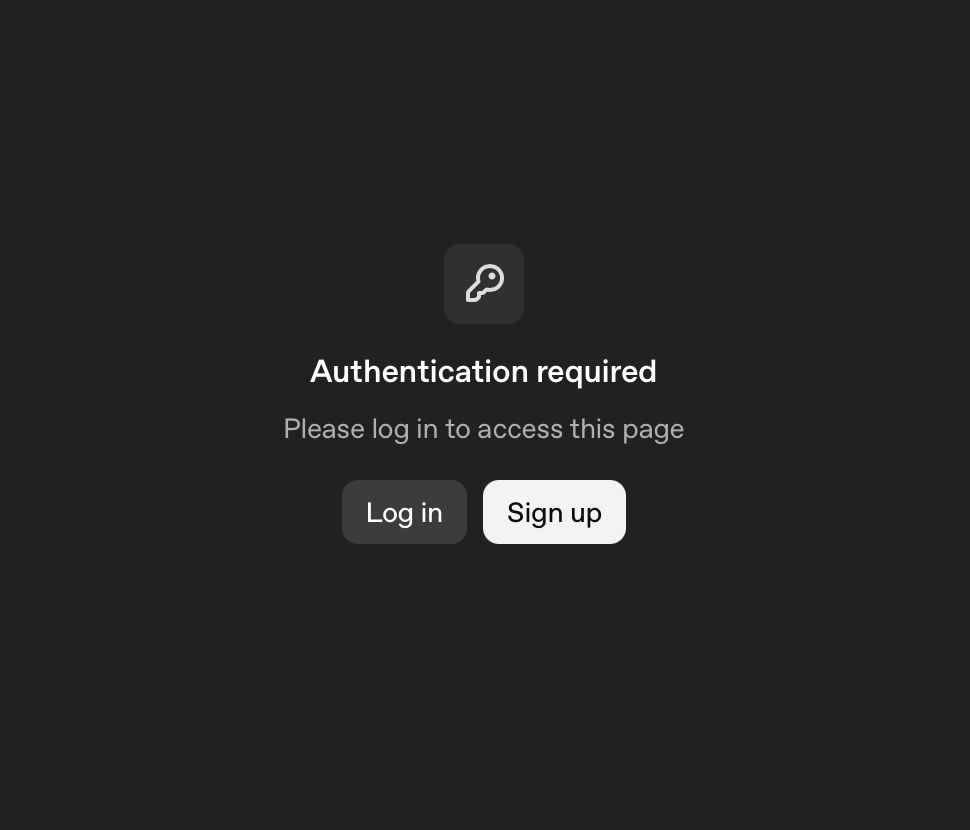
Go to the OpenAI platform and sign in. If you don't have an account, create one with your email or Google — it's free.
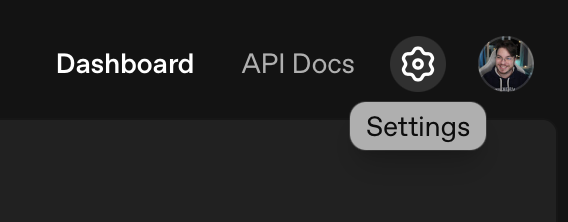
Navigate to Settings
Click the Settings icon (gear) in the top-right to open the settings area.
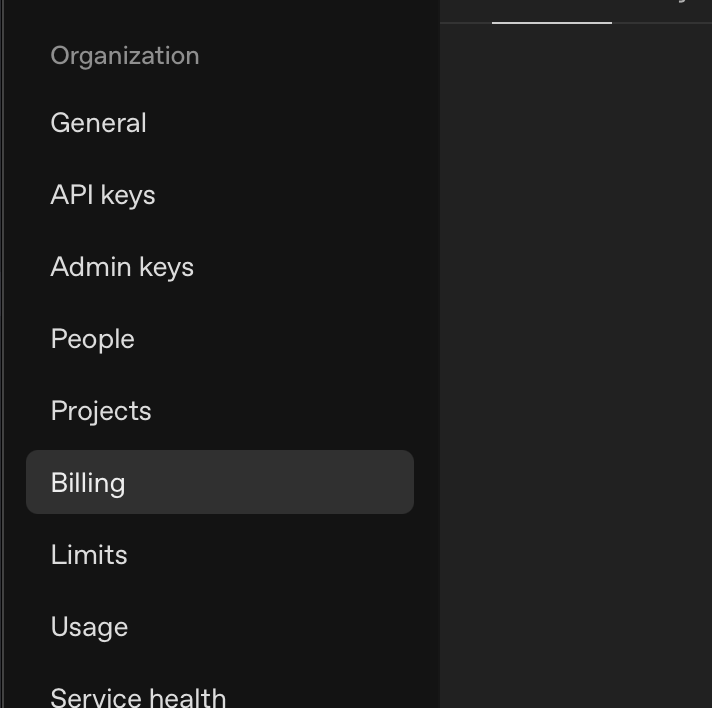
Click Billing in the left menu
In the left sidebar, click on Billing to manage your payment method.
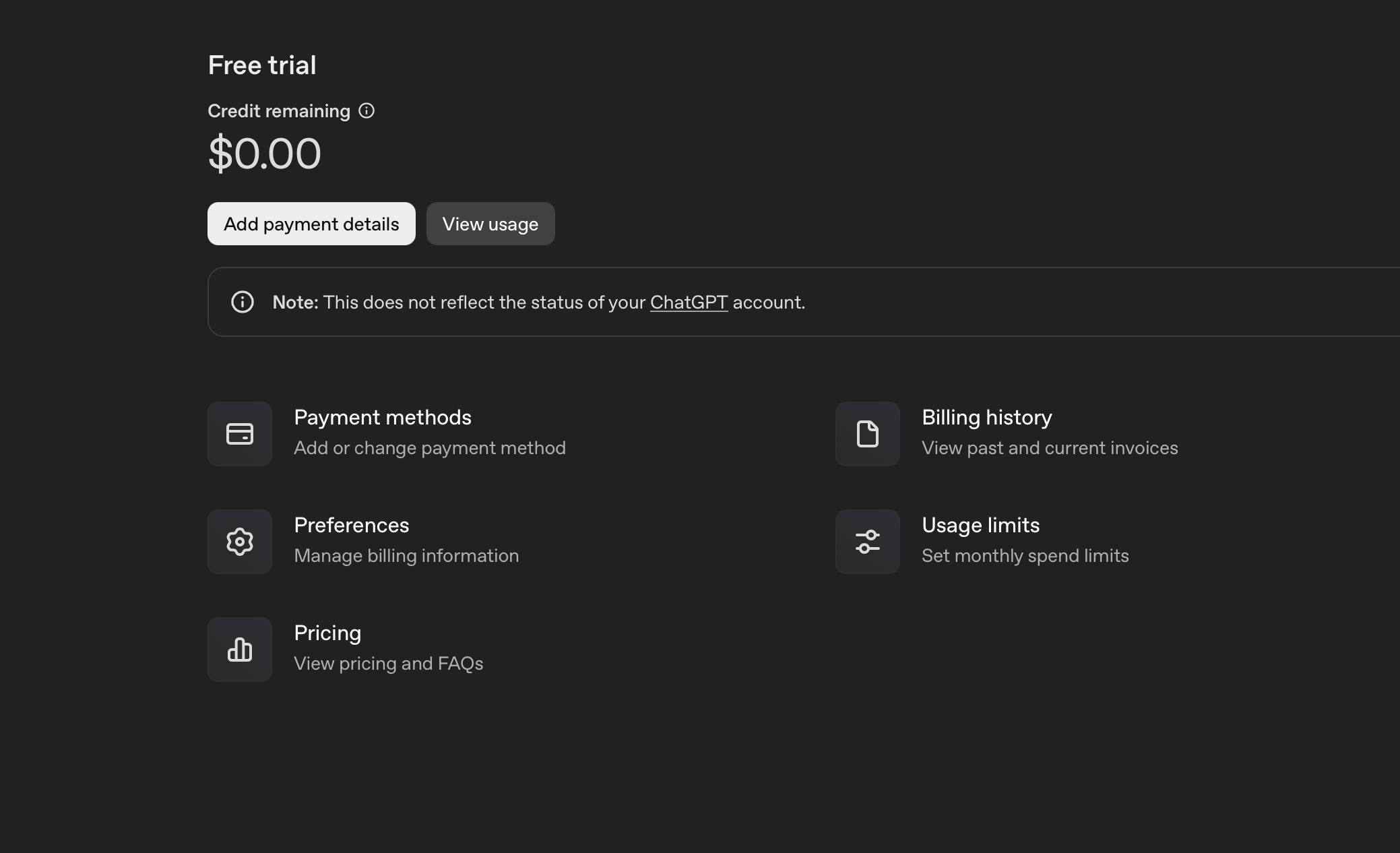
Click Add payment details
In the center of the screen, click 'Add payment details' to add your card.
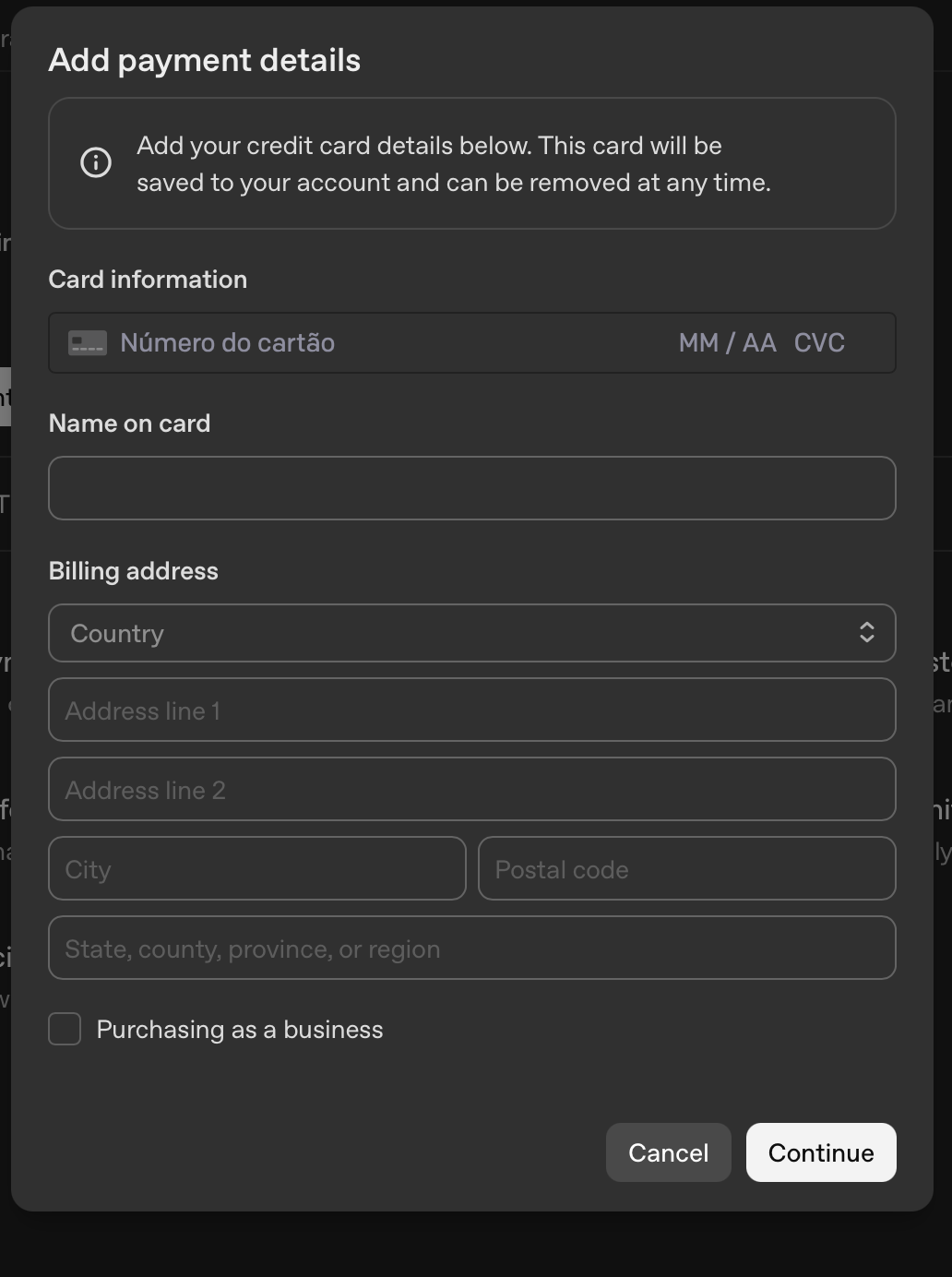
Fill in your payment information
Enter your card details and add credits (e.g. $5–10). You only pay for what you use — about $0.10 per carousel.
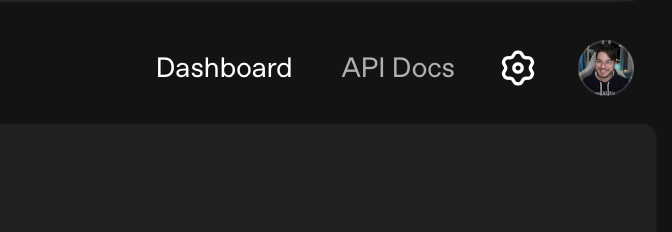
Go back to Dashboard
In the top menu, click Dashboard to return to the main view.
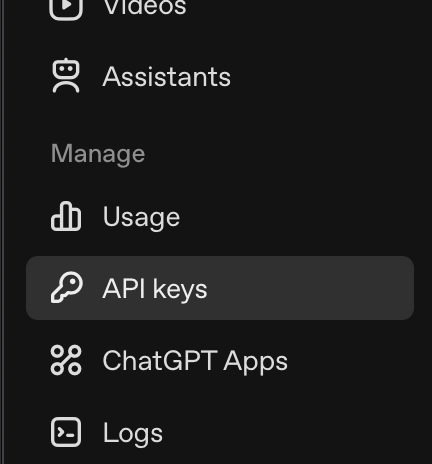
Click API Keys in the left menu
In the left sidebar, click on API Keys. You'll see your existing keys or an empty list.
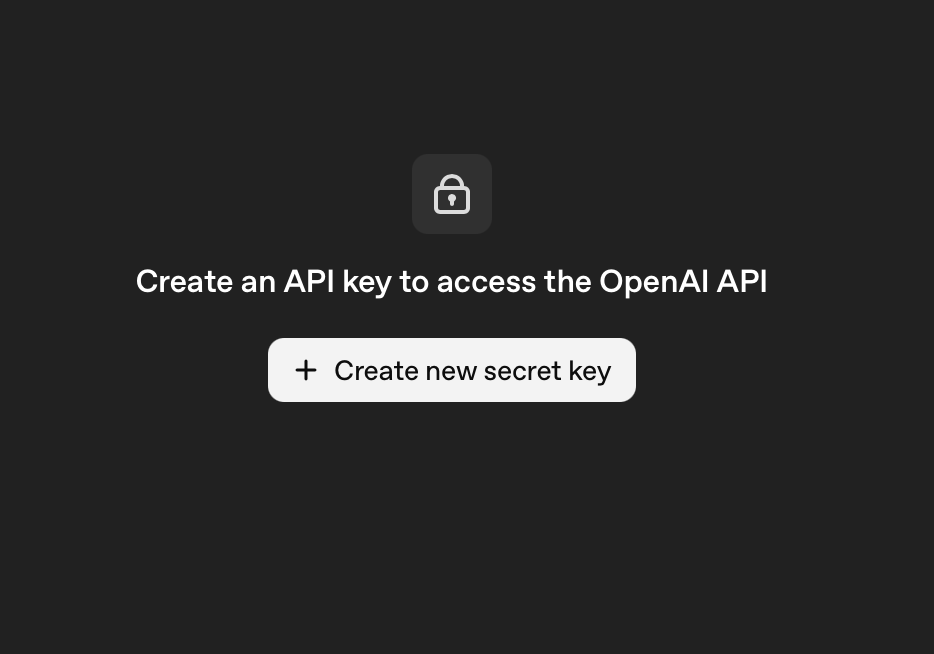
Click Create new secret key
Click the 'Create new secret key' button to generate a new API key.
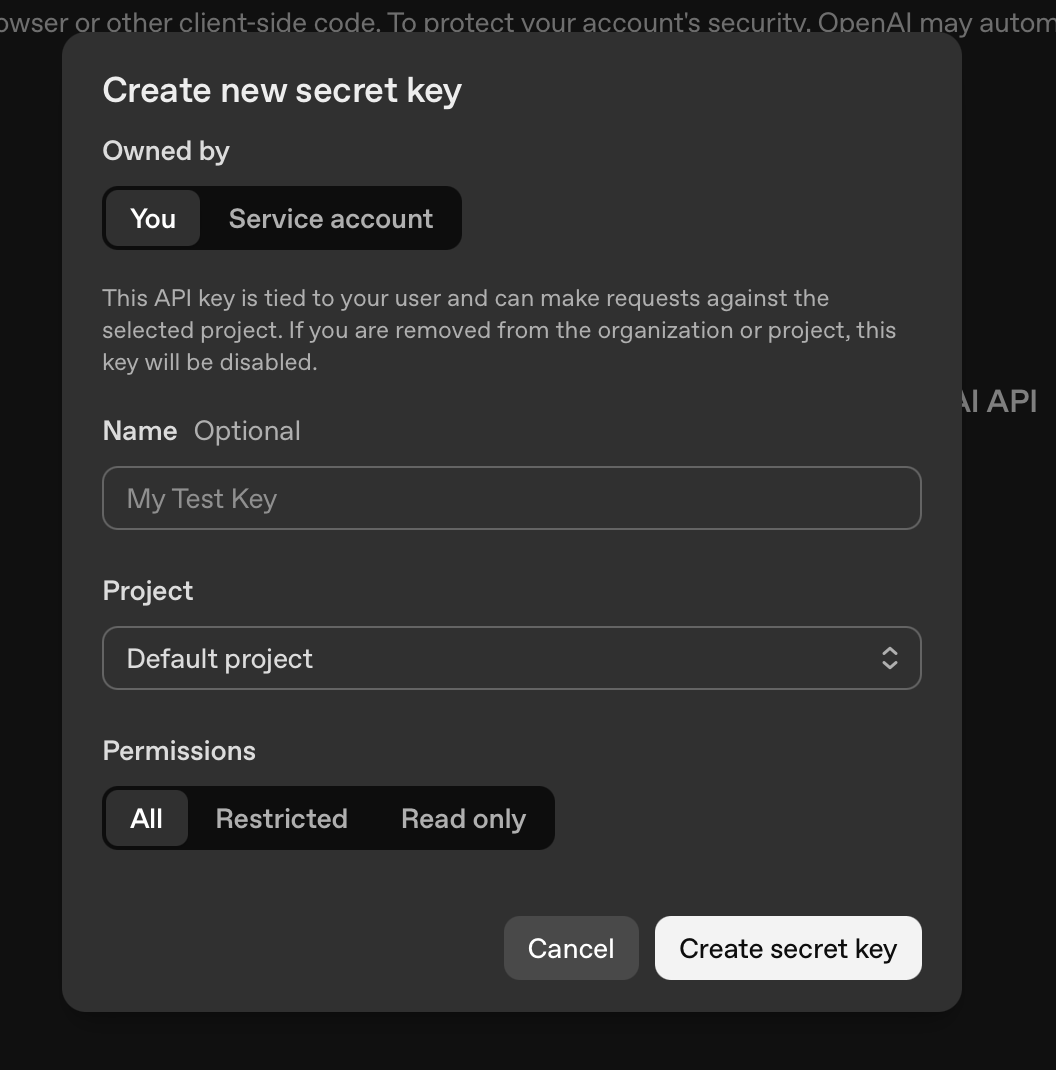
Name your key and set permissions
Give it a name (e.g. 'Deckly') and use the default permissions — don't select Read-only, or the key won't work for API calls.
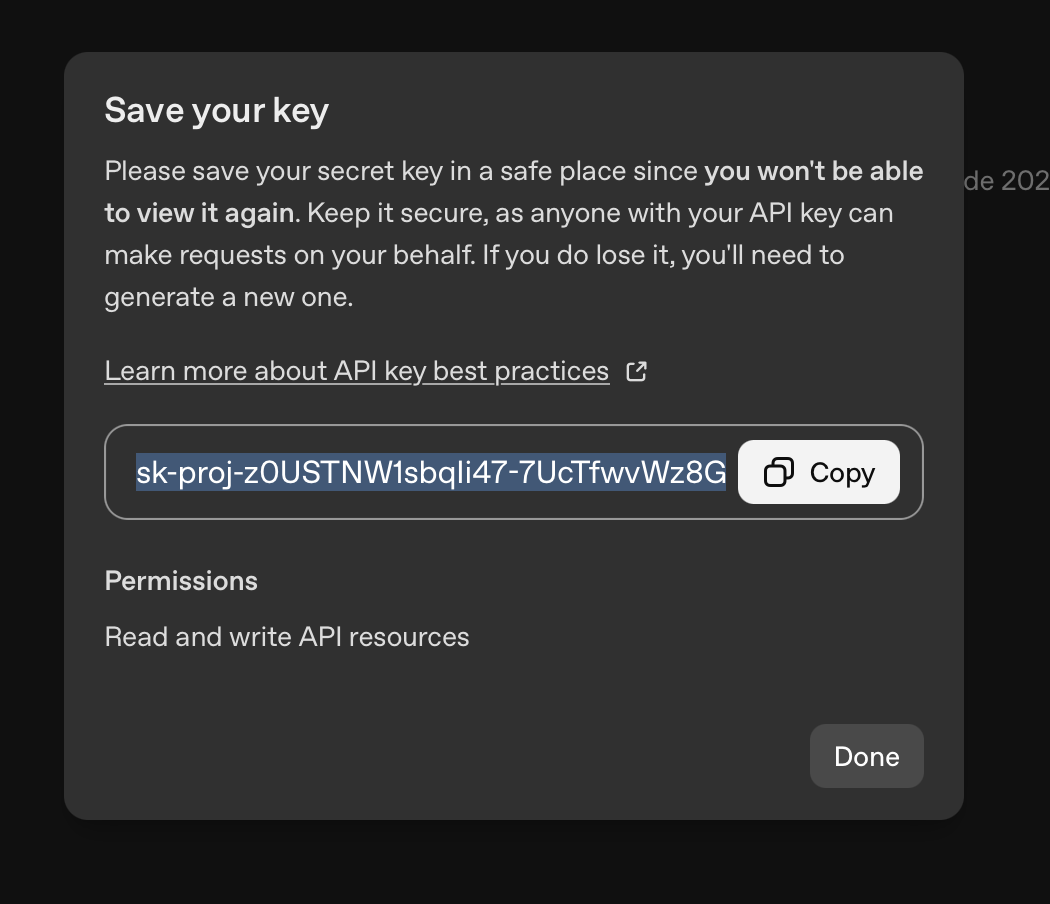
Copy the key
The key is shown once. Copy it immediately — you won't be able to see it again.
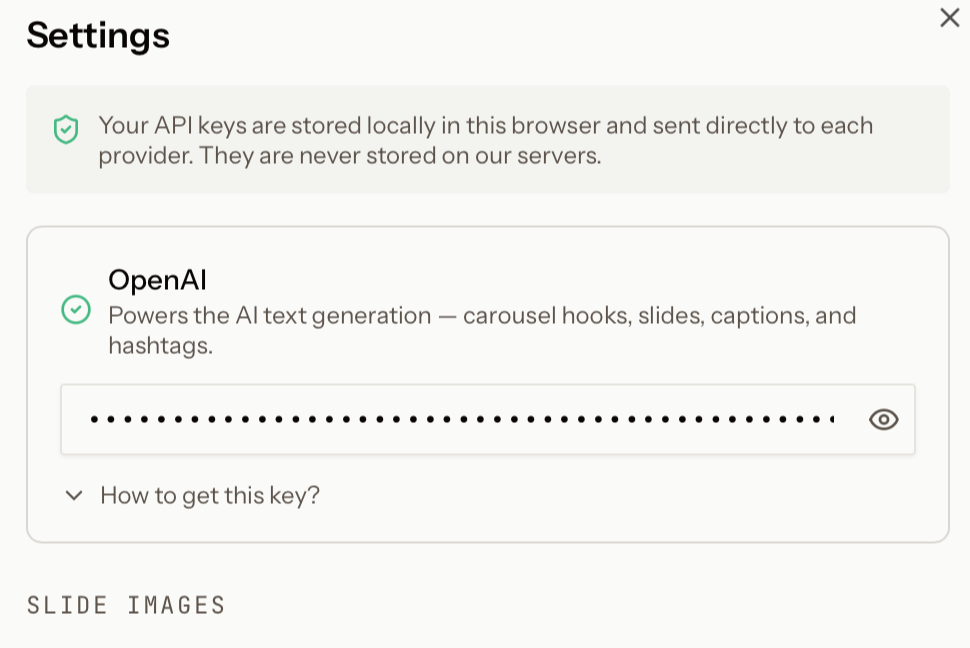
Paste in Deckly
Go back to Deckly Studio, open Settings, and paste the key (Cmd+V or Ctrl+V) in the OpenAI field.
That's it!
You're all set. Now you're ready to create amazing carousels easily and quickly.
Start creatingYour key is safe
The API key is stored only in your browser — we never see it or store it on our servers. For extra peace of mind, create a key named "Deckly" (or similar) in OpenAI. If you ever need to revoke it, you can simply delete that key in your OpenAI dashboard.
Ready to add your key?
Open Settings in Deckly Studio and paste your API key in the OpenAI field.
Having trouble?
- • Can't find API Keys? Look for it in the left sidebar on platform.openai.com — it may be under a menu if you're on mobile.
- • Key doesn't work? Make sure you copied the full key (it starts with
sk-) and that you have credits in your OpenAI account. - • Need to add credits? Go to Billing in your OpenAI account to add a payment method.